
What are Sequences?
HubSpot Sequences allow you to automate personalized follow-up emails and tasks for leads, contacts, or prospects. Sequences are similar to workflows, but they’re designed specifically for sales reps and individuals to send a series of timed, personalized emails. You can also include tasks, such as reminders to call a prospect or perform follow-up activities. The key difference from workflows is that sequences are one-on-one communications rather than bulk actions.
Minimum HubSpot Tier for Sequences
To use the Sequences feature, you need at least HubSpot Sales Hub Professional or HubSpot
Service Hub Professional. Sequences are part of HubSpot’s sales automation tools, so they’re commonly used by sales teams for nurturing leads, following up after meetings, or moving prospects through the sales process.
Purpose of Sequences
Sequences are designed for prospecting and follow-up. They automate repetitive outreach, freeing up time for more strategic activities. The primary use cases include:
•Nurturing leads: Send personalized emails over time to nurture leads.
•Following up: Schedule a series of emails or tasks to follow up with contacts after meetings, events, or proposals.
•Cold outreach: Automate outreach for new leads or prospects, giving you multiple touchpoints over time without manual effort.
Possible Ways to Use Sequences in Your Processes
•Sales Prospecting: Automatically send a series of emails to cold leads. Include tasks for follow-up calls or social media touches to increase engagement.
•Post-Meeting Follow-Up: After a sales meeting, enroll the contact in a sequence that sends a recap email, a follow-up on action items, and a final check-in.
•Lead Nurturing: Enroll inbound leads into sequences that deliver educational content over time to nurture them toward a demo or discovery call.
•Client Onboarding: After a deal is closed, use sequences to guide new clients through onboarding steps by automating instructions and follow-ups.
•Event Follow-Up: Post-event, send emails and tasks to attendees with resources and next steps.
Step-by-Step Walkthrough to Set Up a 12-Step Sequence in HubSpot
1. Access Sequences in HubSpot
•Log into your HubSpot account.
•Navigate to Automation > Sequences in the top navigation bar.
•Click Create Sequence in the top right-hand corner.
2. Name Your Sequence
•Give your sequence a descriptive name (e.g., “12-Step Cold Outreach Sequence”).
•Click Create Sequence.
3. Add the First Email
•Click Add Email to start building your sequence.
•You can choose an existing email template or create a new one.
•To create a new email, click Create Email, write your subject line, and draft your email.
•Personalize your email using personalization tokens (e.g., first name, company name) to increase engagement.
•Save the email.
Example:
•Subject: “Checking in after our last conversation”
•Body: “Hi , I wanted to follow up on our discussion about ’s needs.”
4. Add a Delay Between Emails
•After the first email, add a Delay to control when the next email or action is triggered.
•Click Add Delay.
•Set the delay for 2-3 days to give the contact time to respond.
•Click Save.
5. Add the Second Email
•Click Add Email to draft your next touchpoint.
•Use this email to provide additional value, such as resources, case studies, or other relevant information.
•Personalize it based on the contact’s industry or company.
•Save the email.
Example:
•Subject: “Additional insights for ”
•Body: “Hi , I thought you might find this case study on companies similar to helpful.”
6. Add a Task for a Follow-Up Call
•After the second email, you can add a Task to follow up with the contact via phone or social media.
•Click Add Task.
•Name the task (e.g., “Call to discuss the proposal”).
•Set the task type to Call.
•Set the task reminder (e.g., due in 2 days after the second email).
•Click Save.
7. Add a Delay Before the Next Email or Task
•Add another Delay before the next step, giving the prospect a few days to respond.
•Click Add Delay.
•Set the delay for 3 days.
•Click Save.
8. Add a Social Media Follow-Up Task
•After the delay, add another task to reach out on social media.
•Click Add Task.
•Name the task (e.g., “Connect with on LinkedIn”).
•Set the task type to To-Do.
•Set the due date for 2 days after the previous task.
•Click Save.
9. Add the Third Email (Restating Value)
•Add a third email, focusing on reaffirming your value proposition and offering additional insights.
•Click Add Email.
•Personalize the content and include details based on the prospect’s company or industry.
•Save the email.
Example:
•Subject: “Further opportunities for ”
•Body: “Hi , I’d love to share more about how we can help achieve its goals.”
10. Add More Delays and Emails
•Add a Delay of 4-5 days after the third email.
•Continue building the sequence with additional follow-ups, tasks, and reminders.
•Add a 4th email reiterating your offer.
•Add tasks to check in via phone or other channels (e.g., “Send a personalized message via LinkedIn”).
11. Personalize Each Step
•Use personalization tokens in every email to increase the likelihood of engagement.
•Incorporate contact information like name, company, and industry where applicable.
•Tailor the message based on the prospect’s activity or deal stage.
12. Set Your Sequence Enrollment Criteria
•Once your sequence is built, define how contacts will be enrolled.
•You can manually enroll contacts in the sequence from their contact record, or you can set up an automation trigger to add them based on specific actions (e.g., filling out a form, replying to an email).
•In the Sequence setup, click Enrollment Options to choose between manual or automatic enrollment.
Example 12-Step Sequence Breakdown
1.Email 1: Introduction, providing value or a resource (Day 1).
2.Delay: 3 days.
3.Email 2: Follow-up with additional information or a case study (Day 4).
4.Task: Call the contact to check in (Day 6).
5.Delay: 2 days.
6.Email 3: Restating value proposition, offering a meeting or demo (Day 8).
7.Delay: 3 days.
8.Task: Connect via LinkedIn or other social media (Day 11).
9.Email 4: Final outreach before pausing the sequence (Day 13).
10.Delay: 5 days.
11.Task: Follow-up phone call or personalized message (Day 18).
12.End Sequence: If no response, exit the sequence and manually review.
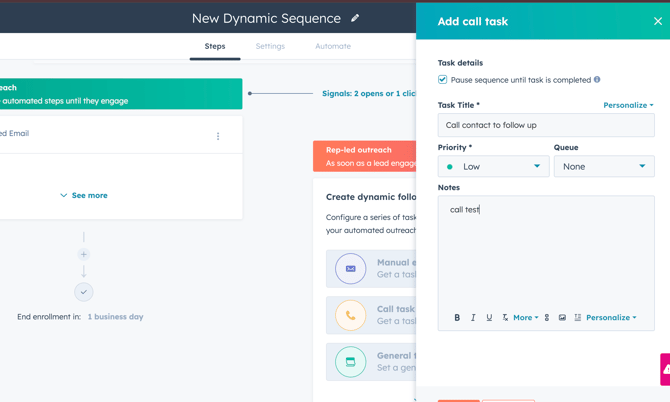
* It's important that you note that each step of the sequence has a checkbox that will pause the individual if selected. If you select the pause sequence checkbox, you will need to complete the task or call task in order to continue them through the sequence as needed. *
Monitoring and Optimizing Your Sequence
•Sequence Analytics: After your sequence is live, HubSpot provides analytics for open rates, reply rates, task completion rates, and more. You can monitor these metrics from the Sequences dashboard.
•Adjusting Delays and Content: If you notice that contacts are dropping off or not responding at a certain stage, tweak your emails, tasks, or delays to improve engagement.
•A/B Testing: If you want to experiment with different subject lines or message content, you can manually test variations in your emails to see which performs best.